
Connect WhatsApp
CoPulse onboards WhatsApp through Gupshup and Meta embedded signup. The click path splits immediately: a brand-new number vs a phone that already runs the WhatsApp Business App. Use the matching page — do not mix the two.
Which path are you on?
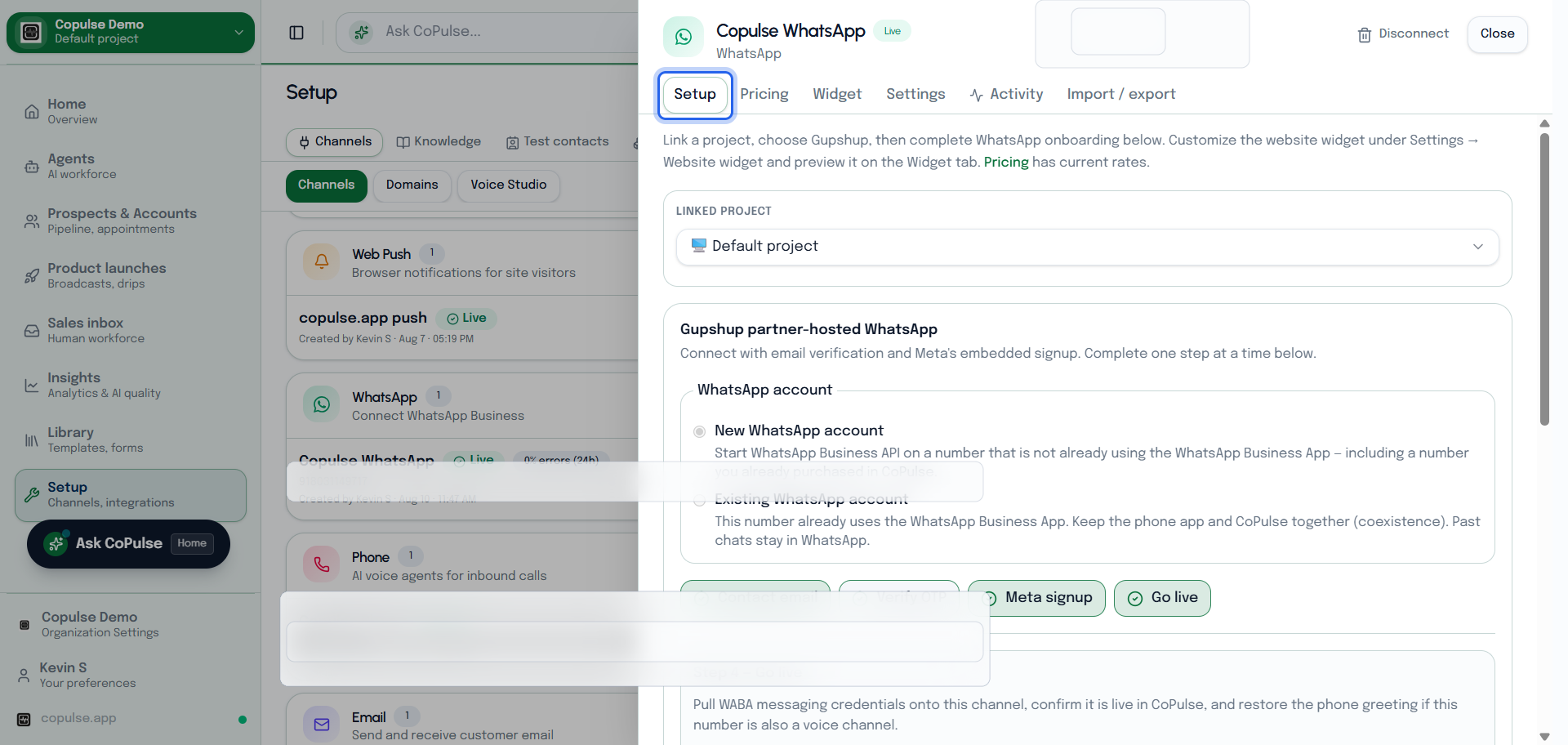
New phone
Number is not on WhatsApp yet. Add it in Meta, verify with a phone call (not SMS), then go live in CoPulse.
Read →Existing phone
Number already uses the WhatsApp Business App. Coexistence keeps the handset working while Cloud API runs in CoPulse.
Read →Before you begin
- A work email you can open during setup (Gupshup OTP and Meta voice OTP are sent here).
- A Facebook login that can create or access a Meta Business portfolio.
- Keep the CoPulse tab open for the whole flow. Closing it mid-embed loses context.
- Wallet balance if you still need to purchase a phone number first.
After the number is live
- Submit message templates for campaigns outside the 24-hour session window.
- Finish go-live if status is not already live, then send a test.
- Open Inbox and confirm the test thread appears.
Settings and what they mean
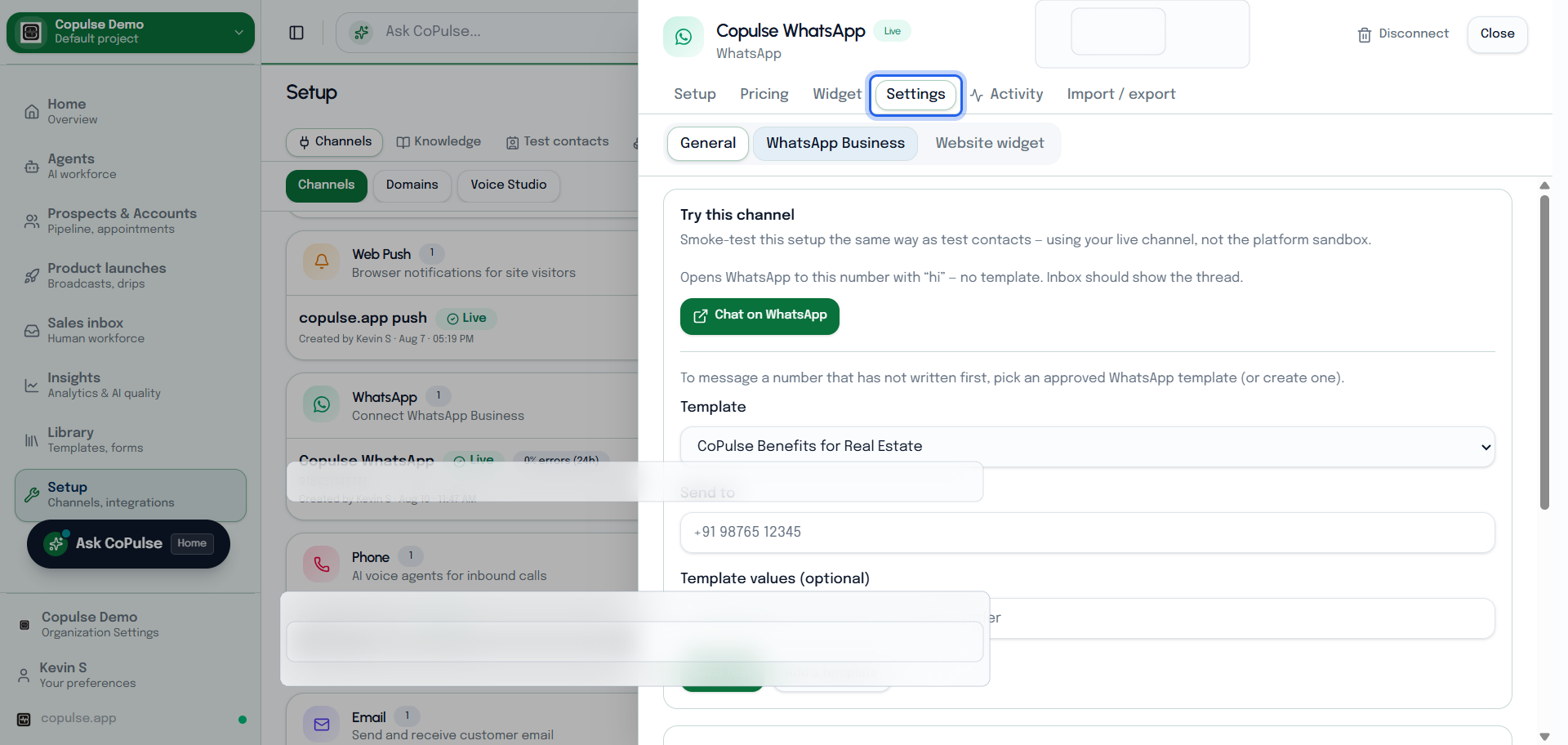
Open the channel → Settings. The list name is a CoPulse label only — it does not change the WhatsApp Business profile or the connected number.
| Setting | What it means |
|---|---|
| Display name | Name shown on this channel in CoPulse. Independent of Meta’s business display name unless you kept them the same. |
| Greeting message | First automated line after a customer writes in (session). Keep it short; the agent prompt still owns qualification. |
| Website widget | Click-to-chat embed on your site (appearance, greeting, snippet). Preview it on the Widget tab. This is not the Cloud API inbox — it opens WhatsApp on the visitor’s phone. |
| Messaging API key | Filled at go-live. If status is pending_messaging_api_key, paste the Gupshup messaging key so campaigns and inbox can send. |
How to test WhatsApp
Use a sandbox contact so trial traffic stays on this organization. Prefer a number that is not the WABA itself.
- On the channel, open Settings → Try this channel.
- Inbound (no template): click Chat on WhatsApp. It opens WhatsApp to this number with “hi”. Confirm the thread in Inbox.
- Outbound (template): pick an approved WhatsApp template and Send test. Needed when that number has not written first (outside the 24-hour window).
- Check Setup → Activity (or the channel Activity tab) if the send does not appear — wallet, template status, and go-live are the usual causes.
FAQ
Is this the same as connecting an existing phone voice line?
No. Phone channel numbers must be purchased in CoPulse. “Existing phone” here means an existing WhatsApp Business App number (coexistence), not a voice line you already rent from another provider.